Network rendering and AI agents on your farm
RenderFlow
AI
Tutorial

Péter Sárhidai
Network rendering used to mean one thing: send a scene to other computers and get frames back faster. That part still matters, and we’ll cover it properly. What’s new is who can use the farm. An AI agent connected to your farm can now open 300 scenes in 3ds Max, change the lights in Blender, build colour variations in Cinema 4D or resize 4,000 textures, spread over every free computer on your network. Then it renders every scene and passes the frames on to post-production: a Nuke comp, a video encode, each step starting when the one before it finishes.
This guide covers both halves. First what network rendering is and what an agent adds, then the practical part: hardware, Windows, Linux and macOS, network drives, ports and paths, for anything from a homelab to a small or mid-size studio. We’re 3D artists ourselves, and most of this we learned on our own projects.
Network rendering, the short version
A render farm manager sits between your artists and your machines. Someone submits a scene, the manager splits it into tasks (frames, chunks or tiles), hands each task to a machine that’s free and able to render it, and collects the results in one place. When a frame fails, it tries again, and the task log usually shows you why.

Figure 1. A hundred frames in ranges of ten. Each free machine takes the next range, and every frame lands in the same output folder.
Three things make it worth the setup:
Time. Ten machines render a 300-frame animation about 10 times faster than one.
Resources. Workstations sit idle from 7 pm to 9 am. A studio with 4 render nodes and 12 workstations has 16 machines for the night, without buying anything. When the machines you own aren’t enough, the same farm grows into your own Azure or AWS account.
Management. A job queue with priorities, dependencies and pools: urgent work goes first, a comp step waits for its render, and each job lands on machines that can run it. Failed frames retry on their own, and the artist who used to copy scenes around goes back to making them.
What about a single still? Split a high-resolution still into tiles: each machine renders a tile and RenderFlow puts the image back together. For 3ds Max with V-Ray or Corona, distributed rendering works too, with several machines rendering the same frame together. Either way, one big still finishes in a fraction of the time.
The tool that came with your application (Backburner, Team Render, Flamenco, HQueue) does this for one application. A farm manager such as RenderFlow does it for 26 applications on one farm, with Windows, Linux and Mac machines side by side, and automates and schedules the farm itself: idle workstations, power, pools and a weekly timetable.
What changed: the farm runs more than renders
A RenderFlow farm runs scripts as well as renders, and they’re split across machines the same way frames are. Script jobs run inside the application itself, without anyone opening it, such as MAXScript or Python inside 3ds Max, or Python inside Blender.
Each one takes a work list: a range, a count or a list of items, such as scene files, cameras, colourways or seeds. Every item becomes a task that any suitable machine picks up. Jobs can wait for each other, so a script that prepares 40 scenes can hand straight over to the render that follows.
That’s what makes the second half possible.
Your AI agent, with a farm behind it
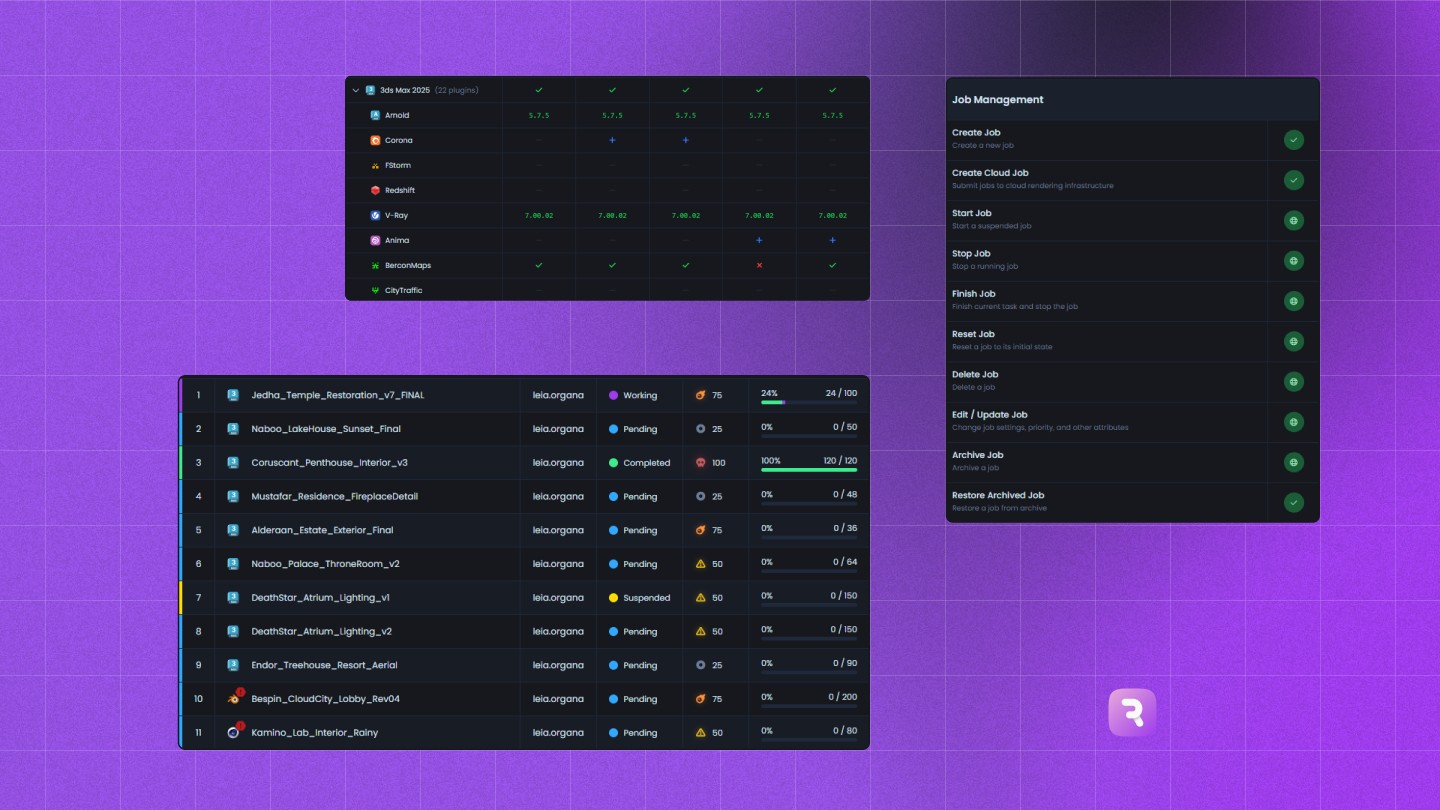
Every RenderFlow server has a built-in MCP server. Connect Claude Desktop or any other MCP client and the agent can read the farm and act on it: submit renders and scripts, requeue frames, move machines between pools, look at rendered frames and set schedules.
Put that together with script jobs and an agent stops being a chat window. You describe the work, the agent writes the script, and the farm runs it in the right application on as many machines as fit.
Two examples, and what happens on the farm:
“Open every scene in this project, relink the missing textures to the new server, save them, and render a preview of each camera.”
The agent writes a MAXScript and submits it as a 3ds Max Script job with one task per scene. Every free machine opens a scene in 3ds Max in the background, relinks the textures, saves it and takes the next one. A render job waits behind the script and starts once the last scene is saved, with a preview of every camera. Forty scenes, twelve machines, one coffee.
“Set up ten camera angles around the headphones, light each one, and render.”
The agent writes a Python script for Blender and submits a Blender Script job with a work list of ten cameras, plus a render job that waits for it. Each task places its camera, aims a key light for that angle and saves its own .blend file. Free machines take one camera each, and once the last one is saved, the render starts and the ten shots land in the same output folder.
And a few casual ones for running the farm:
“How did the overnight renders go?”
“Which machines are idle right now?”
“Why did frame 137 fail?” The answer comes with the renderer’s own log lines and what your error catalog says about them.
“Requeue the frames that failed last night.”
“Are the last frames of my render actually there, or black?” The agent looks at the rendered previews.
“Move the workstations into the render pool for tonight.”
“Shut the render nodes down at 22:00 every night until Friday.”

Figure 2. One task per camera. Machines set up the cameras in Blender in the background, and the render starts as soon as the last camera is saved.
You stay in charge
An agent with hands on your farm should have clear limits, and these are built in:
Off until you turn it on. AI clients stay off on a new farm until an admin switches them on under Settings → Security.
Nothing deletes. None of the MCP tools can delete a job, a machine or a file.
Check before it runs. Ask the agent to submit jobs suspended, look at the job and its script, then start it yourself.
Keys that do only what you allow. A laptop without RenderFlow connects with an API key, and a read-only key makes an agent that answers questions and changes nothing.
Your farm stays on your network. Clients connect to RenderFlow on the same computer, not through the internet. Want the model local too? LM Studio runs a local model that supports tool calling, so nothing leaves the building.

Figure 3. Ask the farm in plain words: the agent checks it, requeues what failed and sets the schedule.
Render farm setup: what you need
Here’s the practical part, for a studio or a homelab.
The server
One machine coordinates the farm: it keeps the job queue and decides which machine renders what. That’s book-keeping, not heavy computing. We recommend 4 CPU cores, 16 GB of RAM and 100 GB or more of free space on an SSD.
A mini PC, an old desktop, a Linux box in the cupboard or a Mac mini will do. Give it a fixed IP address (a DHCP reservation on your router is enough), because all the other machines connect to it. And keep it out of the rendering: a heavy render fighting the database for memory slows the whole farm down.
Render nodes and workstations
Any machine that can run your render can join the farm:
Windows 10 or 11, or Windows Server 2019 and later
Linux: Rocky (8, 9, 10), Ubuntu and other RHEL or Debian based distributions
macOS 13 or later on Apple silicon
A few rules of thumb:
RAM matters most. Match your workstations. A scene that needs 90 GB on a workstation pages to disk or fails on a node with 64 GB.
Mixed machines are fine. RenderFlow benchmarks each machine and sends work to the fastest first, and a job can ask for a minimum of RAM or VRAM, so it never lands on a machine that’s too small for it.
Keep about 100 GB free on the system drive. Applications write their temporary files there while they render.
Install the same versions everywhere. The same application, renderer and plugins as the artist who made the scene. RenderFlow’s Inventory screen shows what’s installed on each machine and only sends a job to machines that have what it needs, but the versions still have to be there.
Mac mini as a render node? Yes, for anything that runs on macOS: Blender, Cinema 4D, Houdini, Maya, Nuke, After Effects, DaVinci Resolve, ComfyUI.
Shared storage
Every machine needs to open the same scene, find the same textures and write frames to the same place. That means a NAS or a file server, plus one shared folder RenderFlow uses for job files, logs and frame previews (the repository).
Farm size | Storage that keeps up |
|---|---|
2 to 5 machines | A share on a fast SSD in one machine, or a small NAS |
5 to 20 machines | A NAS with SSD cache, on wired Ethernet |
20 and more | A file server or a NAS with 10 GbE, ideally SSD |
Any NAS that shares over SMB or NFS works, in a homelab or a small studio.
Network
When ten machines open the same 4 GB scene at once, the network runs out long before the CPUs do. 1 GbE is workable for a small farm; 10 GbE is recommended and hard to avoid as the farm grows. Use cables, not Wi-Fi, for anything that renders.
Only the RenderFlow server needs internet access, for sign-in and licensing. Render nodes and workstations don’t need it for RenderFlow, though your applications and render engines may still need it for their own licences. For a farm with no internet at all, offline licensing (Enterprise only) runs the server from a licence file.

Figure 4. One server in the middle. Render nodes, workstations, your laptop and the NAS connect to it, and only the server goes online.
Getting the paths right
Most first-night failures come from paths, so this gets its own section. A scene that renders fine on the artist’s machine finds its textures, caches and output folders through that machine’s own view of the network: a drive letter, a mount point, a path someone typed once. A render node sees the network differently, so the scene opens, can’t find its files, and renders black frames or fails outright. Get the paths right once and most of those problems never happen.
Use UNC paths, not drive letters
P:\projects\headphones\product_v03.blend works on the artist’s machine. On a render node running as a service, P: doesn’t exist: a drive letter belongs to a logged-in user, and a service has no user session. Point scenes and the repository at UNC paths instead:
\\nas\projects\headphones\product_v03.blend
If your studio lives on drive letters, add them under Settings → Mapped Drives, and each Windows machine will map them when RenderFlow starts.
Windows, Linux and Mac on one farm
The same share has a different path on each platform. Settings → Mapped Paths translates them once for the whole farm:
Platform | Path |
|---|---|
Windows |
|
Linux |
|
macOS |
|
Mount the share in the same place on every Linux machine (an SMB or NFS entry in /etc/fstab) and every Mac, and a job submitted from Windows renders on all three.
Nothing on the desktop
C:\Users\peter\Desktop\textures renders on Peter’s machine and nowhere else. Keep every asset on the share. This one’s worth an email to the whole team.
Ports and firewalls
Port | Protocol | What for |
|---|---|---|
44442 | TCP | API and live updates (machines and agents connect here) |
44443 | UDP | Finding the server on the network |
44444 | TCP | The database, on the server itself |
44445 | TCP | The farm interface over HTTPS, when TLS is on |
The installer opens these for you: Windows Firewall rules on Windows, firewalld or ufw on Linux, and Application Firewall exceptions on macOS. A third-party firewall needs them added by hand.
On a Mac, macOS asks the first time RenderFlow reaches another machine on the network. Press Allow for both RenderFlow and rfsv. If you missed it, turn both on under System Settings → Privacy & Security → Local Network.
On a homelab with VLANs, put the farm on one network, or type the server’s address on each machine if discovery doesn’t find it.
Setting up, step by step
Install the server. Pick the server role in the setup wizard and sign in with your Pulze account. Only the server requires you to sign in. Render nodes and workstations join without an account of their own.
Set the repository to a UNC path on your share, and test it from one other machine.
Install the render nodes. Run them as a service (a Windows service, a systemd service on Linux or a launchd daemon on macOS) so they start on boot with nobody logged in. Press Discover or type the server’s address.
Add the workstations. In Settings → Automation, turn on Use idle machines so a workstation joins the farm after its artist has been away for a set time, and Return to user so it goes back to the artist when they return.
Render one real job. Render the project you’re working on right now, with its real textures and plugins, and check the frames.
Connect your agent. Turn on AI clients under Settings → Security, then open Settings → AI Clients on the computer you work on and press Connect next to your client. For Claude Desktop, press Install, then Install again in Claude Desktop. There is nothing to fill in.
Ask it something small first. “How is the farm doing?” is a good start, or “Requeue the failed frames of the last job.” Once that works, move on to scripts.
Deploying to 100 machines? The installer runs silently with flags for the role, the server address and the service, so a script or your deployment tool can set up every machine. The flags are listed in Silent Deployment.

Figure 5. The Machines screen: a Linux mini PC runs the server, two Windows render nodes and a Mac mini take the work, and four workstations join when their artists are away.
Mistakes that cost a night of renders
Version mismatches. Someone updates Corona on their workstation and the nodes still run last month’s version. The frames render, but they don’t match. Check Inventory after every update.
Running out of licences. Ten nodes pick up a job when you own five render engine licences, and half the frames fail. Set a licence limit for the application, and the extra tasks wait for a free seat instead of failing.
Paths that only work on one machine. See above. Then see it again.
Failures nobody sees until morning. Turn on notifications for failed jobs (Slack, Teams, Discord, email or a webhook), or ask your agent first thing: “What failed overnight, and why?”
Try it on your own machines
Start with what you have: a server, a couple of nodes and a workstation are enough to see network rendering and an agent working on your own scenes. Try it on up to 10 machines for 30 days.
The quickest start: paste “Set up RenderFlow for me: https://renderflow.com/setup.md” into your agent. The agent walks you through installing the server and the nodes, and you can talk your network rendering setup through with it as you go.
Connecting your agent step by step is in the MCP server guide, and everything else RenderFlow does is on the RenderFlow page.
FAQ
What is network rendering?
Network rendering splits a render across several computers on your network. A render farm manager hands each frame or chunk to a free machine and collects the results, so ten machines finish a sequence about ten times faster than one.
Can an AI agent control my render farm?
Yes. RenderFlow has a built-in MCP server, so Claude Desktop or any other MCP client can submit renders and scripts, requeue frames, check results and manage machines. AI clients are off until an admin turns them on, and none of the tools deletes anything.
Can the agent work inside Blender, Cinema 4D or 3ds Max?
Yes, through script jobs. The agent writes a Python script (or MAXScript for 3ds Max), and RenderFlow runs it inside the application on the farm, split across machines: one task per scene, camera or variation.
Can a Mac mini be a render node?
Yes, on macOS 13 or later with Apple silicon, for any application that runs on macOS, such as Blender, Cinema 4D, Houdini, Maya and Nuke.
Can I run the server on Linux or a Mac?
Yes. The server runs on Windows, Linux and macOS. A mini PC is enough for a small farm.
Do I need 10 GbE?
Not to start. 1 GbE works for a small farm. As more machines open the same scenes at once, 10 GbE is the upgrade that keeps them fed.
Does my farm data leave the network?
No. RenderFlow runs on your own server and machines, and AI clients connect to it locally. Only the RenderFlow server talks to Pulze, for sign-in and licensing, and with offline licensing (Enterprise only) not even that.

"/><stop offset="1" stop-color="rgb(249, 153, 88)"/></linearGradient><linearGradient id="tNByExjAT-3936178086-linear-gradient" x1="0.592694010721749" x2="0.40730598927825107" y1="0" y2="1"><stop offset="0" stop-color="rgb(214, 214, 214)"/><stop offset="1" stop-color="rgb(249, 249, 249)"/></linearGradient></defs><g d="M 140 280 C 201.35 280 235.45 280 257.72 257.72 C 280 235.44 280 201.34 280 140 C 280 78.66 280 44.55 257.72 22.28 C 235.45 0 201.35 0 140 0 C 78.65 0 44.55 0 22.28 22.28 C 0 44.55 0 78.65 0 140 C 0 201.35 0 235.45 22.28 257.72 C 44.56 280 78.66 280 140 280 Z M 93.549 162.53 C 81.249 162.21 71.609 151.79 71.609 139.49 L 71.609 70.54 C 71.609 58.24 81.249 47.82 93.549 47.5 C 106.269 47.17 116.689 57.39 116.689 70.03 L 116.689 139.99 C 116.689 152.64 106.279 162.85 93.549 162.52 Z M 127.189 47.5 L 94.649 47.5 C 82.349 47.5 71.929 57.14 71.609 69.44 C 71.279 82.16 81.499 92.58 94.139 92.58 L 126.429 92.58 C 152.469 92.58 174.229 113.26 174.599 139.3 C 174.979 165.77 153.559 187.42 127.179 187.42 L 117.179 187.42 C 104.879 187.42 94.459 197.06 94.139 209.36 C 93.809 222.08 104.029 232.5 116.669 232.5 L 126.119 232.5 C 177.179 232.5 219.399 191.57 219.669 140.5 C 219.939 89.27 178.339 47.5 127.169 47.5 Z" fill="transparent" height="280px" id="rSAPTrJ6C" width="280px"><g d="M 140 280 C 201.35 280 235.45 280 257.72 257.72 C 280 235.44 280 201.34 280 140 C 280 78.66 280 44.55 257.72 22.28 C 235.45 0 201.35 0 140 0 C 78.65 0 44.55 0 22.28 22.28 C 0 44.55 0 78.65 0 140 C 0 201.35 0 235.45 22.28 257.72 C 44.56 280 78.66 280 140 280 Z M 93.549 162.53 C 81.249 162.21 71.609 151.79 71.609 139.49 L 71.609 70.54 C 71.609 58.24 81.249 47.82 93.549 47.5 C 106.269 47.17 116.689 57.39 116.689 70.03 L 116.689 139.99 C 116.689 152.64 106.279 162.85 93.549 162.52 Z M 127.189 47.5 L 94.649 47.5 C 82.349 47.5 71.929 57.14 71.609 69.44 C 71.279 82.16 81.499 92.58 94.139 92.58 L 126.429 92.58 C 152.469 92.58 174.229 113.26 174.599 139.3 C 174.979 165.77 153.559 187.42 127.179 187.42 L 117.179 187.42 C 104.879 187.42 94.459 197.06 94.139 209.36 C 93.809 222.08 104.029 232.5 116.669 232.5 L 126.119 232.5 C 177.179 232.5 219.399 191.57 219.669 140.5 C 219.939 89.27 178.339 47.5 127.169 47.5 Z" fill="transparent" height="280px" id="XUITjQ3ui" width="280px"><path d="M 140 280 C 201.35 280 235.45 280 257.72 257.72 C 280 235.44 280 201.34 280 140 C 280 78.66 280 44.55 257.72 22.28 C 235.45 0 201.35 0 140 0 C 78.65 0 44.55 0 22.28 22.28 C 0 44.55 0 78.65 0 140 C 0 201.35 0 235.45 22.28 257.72 C 44.56 280 78.66 280 140 280 Z" fill="url(%23f1qYH2iq6-3936178086-linear-gradient)" height="280px" id="f1qYH2iq6" width="280px"/><path d="M 21.94 115.038 C 9.64 114.718 0 104.298 0 91.998 L 0 23.048 C 0 10.748 9.64 0.328 21.94 0.008 C 34.66 -0.322 45.08 9.898 45.08 22.538 L 45.08 92.498 C 45.08 105.148 34.67 115.358 21.94 115.028 Z" fill="url(%23tNByExjAT-3936178086-linear-gradient)" height="115.03777309249585px" id="tNByExjAT" transform="translate(71.609 47.492)" width="45.0796px"/><path d="M 55.587 0 L 23.048 0 C 10.748 0 0.328 9.64 0.008 21.94 C -0.322 34.66 9.898 45.08 22.538 45.08 L 54.827 45.08 C 80.867 45.08 102.627 65.76 102.997 91.8 C 103.377 118.27 81.957 139.92 55.577 139.92 L 45.577 139.92 C 33.277 139.92 22.858 149.56 22.538 161.86 C 22.208 174.58 32.427 185 45.067 185 L 54.517 185 C 105.577 185 147.797 144.07 148.067 93 C 148.337 41.77 106.737 0 55.567 0 Z" fill="rgb(249, 249, 249)" height="185px" id="kUQRNWucU" transform="translate(71.602 47.5)" width="148.0687800047492px"/></g></g></svg>)
"/><stop offset="1" stop-color="rgb(158, 60, 236)"/></linearGradient><linearGradient id="TwUw7mDUx-2775876027-linear-gradient" x1="0.21742248902519262" x2="0.7825775109748074" y1="0" y2="1"><stop offset="0" stop-color="rgb(227, 227, 227)"/><stop offset="1" stop-color="rgb(249, 249, 249)"/></linearGradient></defs><g d="M 140 280 C 201.347 280 235.448 280 257.724 257.724 C 280 235.448 280 201.347 280 140 C 280 78.653 280 44.552 257.724 22.276 C 235.448 0 201.347 0 140 0 C 78.653 0 44.552 0 22.276 22.276 C 0 44.552 0 78.653 0 140 C 0 201.347 0 235.448 22.276 257.724 C 44.552 280 78.653 280 140 280 Z M 187.406 230 C 179.585 230 171.985 225.961 167.793 218.743 L 137.031 165.737 C 130.788 154.979 134.498 141.223 145.315 135.015 C 156.132 128.806 169.964 132.495 176.207 143.252 L 206.969 196.259 C 213.212 207.016 209.502 220.772 198.685 226.981 C 195.127 229.02 191.236 230 187.406 230 Z M 204 113.5 C 204 78.876 176.174 50.652 141.748 50.03 C 141.367 50.01 140.977 50 140.586 50 L 92.537 50 C 80.087 50 70 60.1 70 72.567 C 70 85.035 80.087 95.135 92.537 95.135 L 140.586 95.135 C 150.703 95.135 158.926 103.37 158.926 113.5 C 158.926 123.63 150.703 131.865 140.586 131.865 L 121.074 131.865 C 108.623 131.865 98.537 141.965 98.537 154.432 C 98.537 166.9 108.623 177 121.074 177 L 140.586 177 C 140.977 177 141.367 177 141.748 176.97 C 176.174 176.348 204 148.124 204 113.5 Z" fill="transparent" height="280px" id="YKCNutVTT" width="280px"><path d="M 140 280 C 201.347 280 235.448 280 257.724 257.724 C 280 235.448 280 201.347 280 140 C 280 78.653 280 44.552 257.724 22.276 C 235.448 0 201.347 0 140 0 C 78.653 0 44.552 0 22.276 22.276 C 0 44.552 0 78.653 0 140 C 0 201.347 0 235.448 22.276 257.724 C 44.552 280 78.653 280 140 280 Z" fill="url(%23YDb5Nxcxy-2775876027-linear-gradient)" height="280px" id="YDb5Nxcxy" width="280px"/><path d="M 53.406 98 C 45.585 98 37.985 93.961 33.793 86.743 L 3.031 33.737 C -3.212 22.979 0.498 9.223 11.315 3.015 C 22.132 -3.194 35.964 0.495 42.207 11.252 L 72.969 64.259 C 79.212 75.016 75.502 88.772 64.685 94.981 C 61.127 97.02 57.236 98 53.406 98 Z" fill="url(%23TwUw7mDUx-2775876027-linear-gradient)" height="97.99995519103643px" id="TwUw7mDUx" transform="translate(134 132)" width="76.00044607111269px"/><path d="M 134 63.5 C 134 28.876 106.174 0.652 71.748 0.03 C 71.367 0.01 70.977 0 70.586 0 L 22.537 0 C 10.087 0 0 10.1 0 22.567 C 0 35.035 10.087 45.135 22.537 45.135 L 70.586 45.135 C 80.703 45.135 88.926 53.37 88.926 63.5 C 88.926 73.63 80.703 81.865 70.586 81.865 L 51.074 81.865 C 38.623 81.865 28.537 91.965 28.537 104.432 C 28.537 116.9 38.623 127 51.074 127 L 70.586 127 C 70.977 127 71.367 127 71.748 126.97 C 106.174 126.348 134 98.124 134 63.5 Z" fill="rgb(249, 249, 249)" height="127px" id="dR8GQomDb" transform="translate(70 50)" width="134px"/></g></svg>)
"/><stop offset="1" stop-color="rgb(20, 201, 225)"/></linearGradient><linearGradient id="ttiWHiLhI-610479465-linear-gradient" x1="0" x2="1" y1="0.10969428681921467" y2="0.8903057131807853"><stop offset="0" stop-color="rgb(249, 249, 249)"/><stop offset="1" stop-color="rgb(227, 227, 227)"/></linearGradient></defs><g d="M 139.395 278.79 C 200.478 278.79 234.431 278.79 256.611 256.61 C 278.791 234.43 278.79 200.477 278.79 139.395 C 278.79 78.313 278.791 44.36 256.611 22.18 C 234.431 0 200.478 0 139.395 0 C 78.313 0 44.36 0 22.18 22.18 C 0 44.36 0 78.313 0 139.395 C 0 200.477 0 234.43 22.18 256.61 C 44.36 278.79 78.313 278.79 139.395 278.79 Z M 178.295 161.885 L 100.415 161.885 C 87.984 161.885 77.914 151.815 77.914 139.385 C 77.914 126.955 87.984 116.885 100.415 116.885 L 178.295 116.885 C 190.725 116.885 200.795 126.955 200.795 139.385 C 200.795 151.815 190.725 161.885 178.295 161.885 Z M 100.396 161.905 C 96.575 161.905 92.705 160.935 89.165 158.885 C 78.405 152.675 74.715 138.915 80.925 128.145 L 119.866 60.695 C 126.076 49.935 139.836 46.245 150.606 52.455 C 161.366 58.665 165.056 72.425 158.846 83.195 L 119.906 150.645 C 115.736 157.865 108.176 161.895 100.396 161.895 Z M 139.335 229.365 C 135.515 229.365 131.645 228.395 128.105 226.345 C 117.345 220.135 113.655 206.375 119.865 195.605 L 158.805 128.155 C 165.015 117.395 178.775 113.705 189.545 119.915 C 200.305 126.125 203.995 139.885 197.785 150.655 L 158.845 218.105 C 154.675 225.325 147.115 229.355 139.335 229.355 Z" fill="transparent" height="278.79002000808714px" id="hKg4pe_V0" transform="translate(0.605 0.605)" width="278.78953101158965px"><g d="M 139.395 278.79 C 200.478 278.79 234.431 278.79 256.611 256.61 C 278.791 234.43 278.79 200.477 278.79 139.395 C 278.79 78.313 278.791 44.36 256.611 22.18 C 234.431 0 200.478 0 139.395 0 C 78.313 0 44.36 0 22.18 22.18 C 0 44.36 0 78.313 0 139.395 C 0 200.477 0 234.43 22.18 256.61 C 44.36 278.79 78.313 278.79 139.395 278.79 Z M 178.295 161.885 L 100.415 161.885 C 87.984 161.885 77.914 151.815 77.914 139.385 C 77.914 126.955 87.984 116.885 100.415 116.885 L 178.295 116.885 C 190.725 116.885 200.795 126.955 200.795 139.385 C 200.795 151.815 190.725 161.885 178.295 161.885 Z M 100.396 161.905 C 96.575 161.905 92.705 160.935 89.165 158.885 C 78.405 152.675 74.715 138.915 80.925 128.145 L 119.866 60.695 C 126.076 49.935 139.836 46.245 150.606 52.455 C 161.366 58.665 165.056 72.425 158.846 83.195 L 119.906 150.645 C 115.736 157.865 108.176 161.895 100.396 161.895 Z M 139.335 229.365 C 135.515 229.365 131.645 228.395 128.105 226.345 C 117.345 220.135 113.655 206.375 119.865 195.605 L 158.805 128.155 C 165.015 117.395 178.775 113.705 189.545 119.915 C 200.305 126.125 203.995 139.885 197.785 150.655 L 158.845 218.105 C 154.675 225.325 147.115 229.355 139.335 229.355 Z" fill="transparent" height="278.79001999999997px" id="w_SP9V_LT" transform="translate(0 0)" width="278.7895310000081px"><path d="M 139.395 278.79 C 200.478 278.79 234.431 278.79 256.611 256.61 C 278.791 234.43 278.79 200.477 278.79 139.395 C 278.79 78.313 278.791 44.36 256.611 22.18 C 234.431 0 200.478 0 139.395 0 C 78.313 0 44.36 0 22.18 22.18 C 0 44.36 0 78.313 0 139.395 C 0 200.477 0 234.43 22.18 256.61 C 44.36 278.79 78.313 278.79 139.395 278.79 Z" fill="url(%23VvyLWBwlb-610479465-linear-gradient)" height="278.79001999999997px" id="VvyLWBwlb" width="278.7895310000081px"/><path d="M 100.381 45 L 22.501 45 C 10.07 45 0 34.93 0 22.5 C 0 10.07 10.07 0 22.501 0 L 100.381 0 C 112.811 0 122.881 10.07 122.881 22.5 C 122.881 34.93 112.811 45 100.381 45 Z" fill="url(%23ttiWHiLhI-610479465-linear-gradient)" height="45px" id="ttiWHiLhI" transform="translate(77.914 116.885)" width="122.88050000000001px"/><path d="M 22.485 112.465 C 18.665 112.465 14.795 111.495 11.255 109.445 C 0.495 103.235 -3.195 89.475 3.015 78.705 L 41.955 11.255 C 48.165 0.495 61.925 -3.195 72.695 3.015 C 83.455 9.225 87.145 22.985 80.935 33.755 L 41.995 101.205 C 37.825 108.425 30.265 112.455 22.485 112.455 Z" fill="rgb(249, 249, 249)" height="112.46529262442554px" id="B5LOvula1" transform="translate(77.91 49.44)" width="83.95068524885113px"/><path d="M 22.485 112.465 C 18.665 112.465 14.795 111.495 11.255 109.445 C 0.495 103.235 -3.195 89.475 3.015 78.705 L 41.955 11.255 C 48.165 0.495 61.925 -3.195 72.695 3.015 C 83.455 9.225 87.145 22.985 80.935 33.755 L 41.995 101.205 C 37.825 108.425 30.265 112.455 22.485 112.455 Z" fill="rgb(249, 249, 249)" height="112.46529262442556px" id="tMeCyqf_z" transform="translate(116.849 116.9)" width="83.95058524885116px"/></g></g></svg>)