Scene Management and Render Automation in 3ds Max
Scene Manager

Humay Hasanova
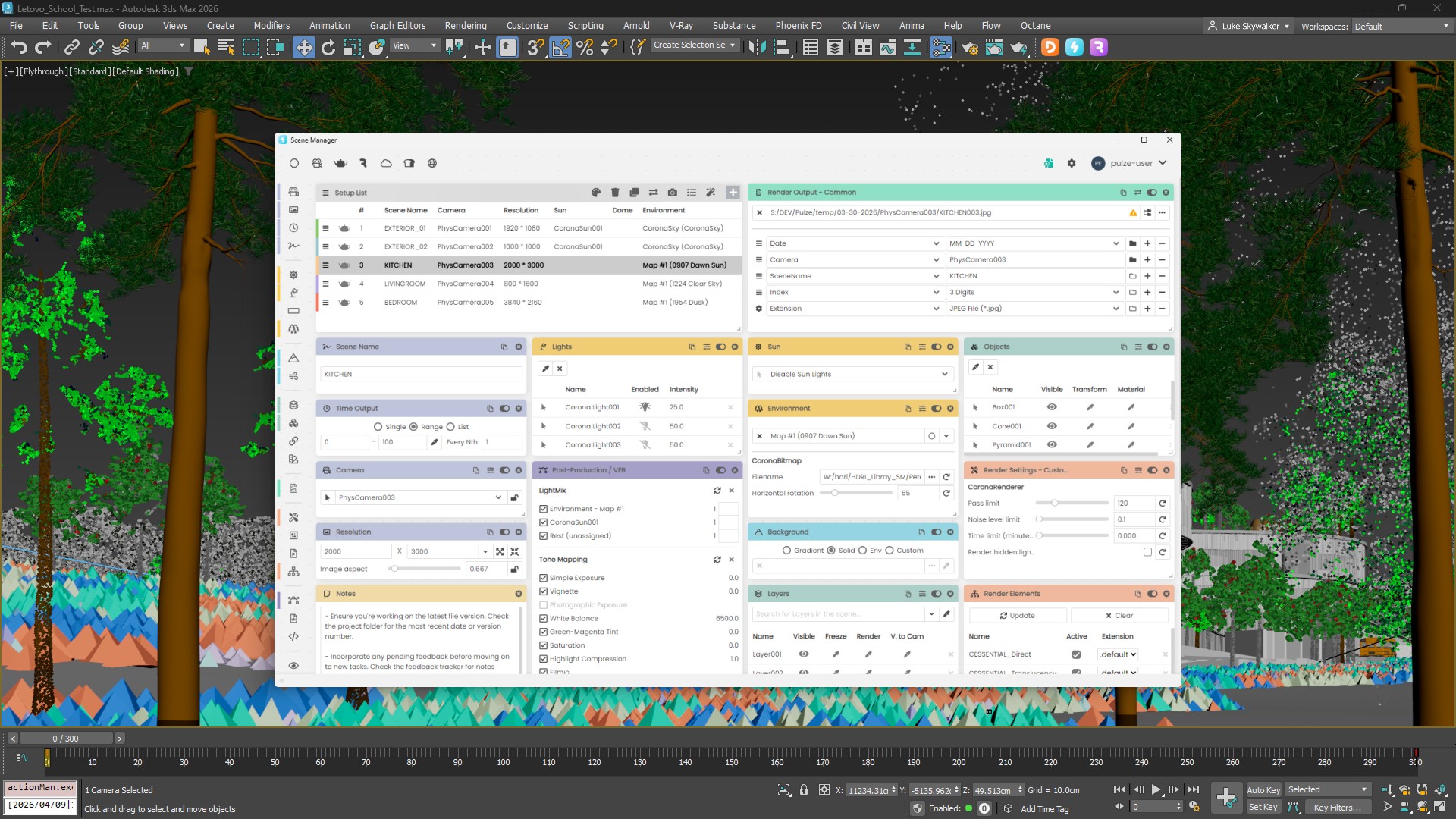
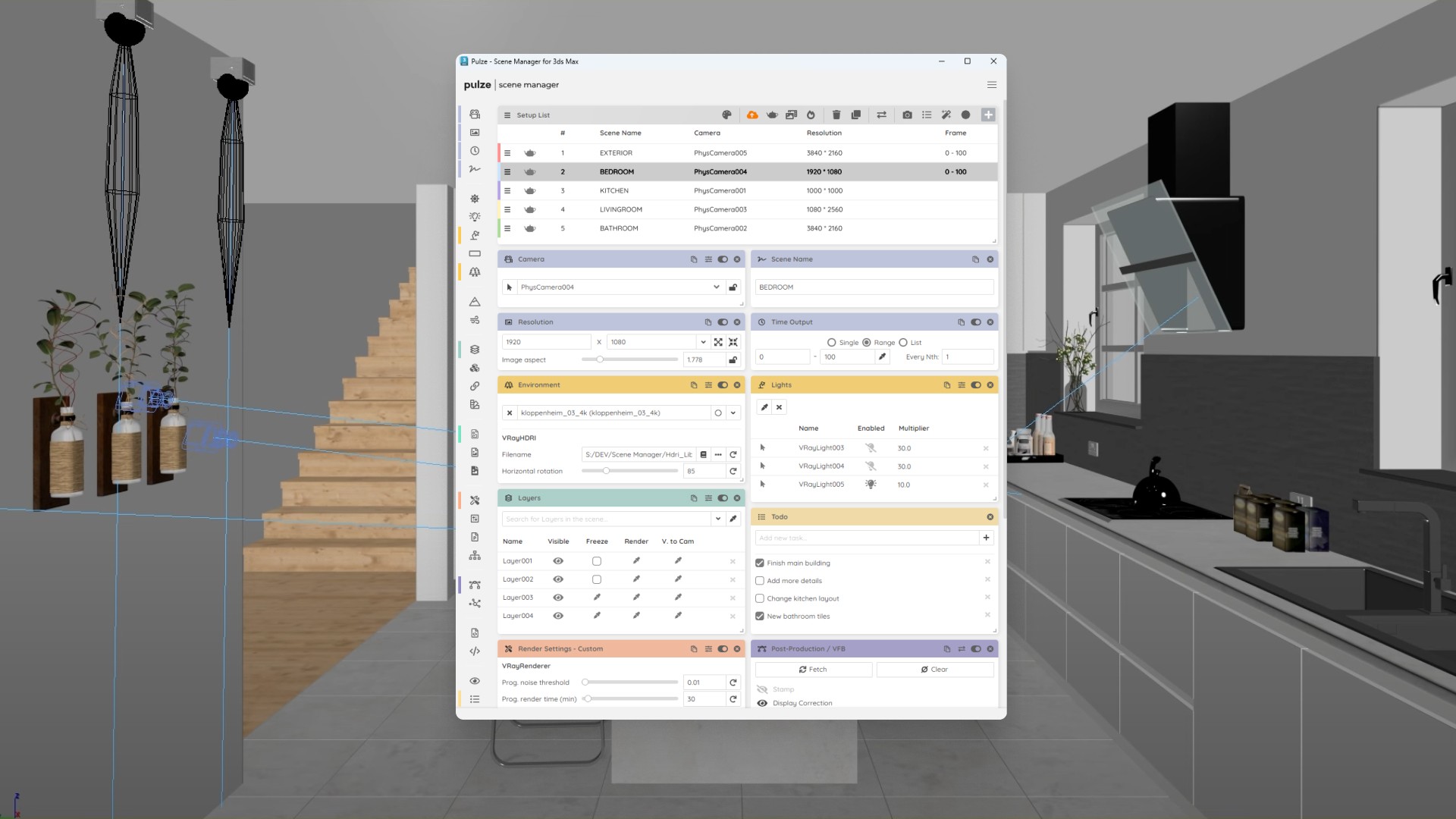
Managing multiple camera angles and lighting conditions in 3ds Max is part of the job, and thoughtful scene management makes it smoother. But switching cameras, adjusting lights, updating output paths, and tweaking render settings manually every time adds up fast. Here’s how Scene Manager handles it.
1. Cameras & Resolution
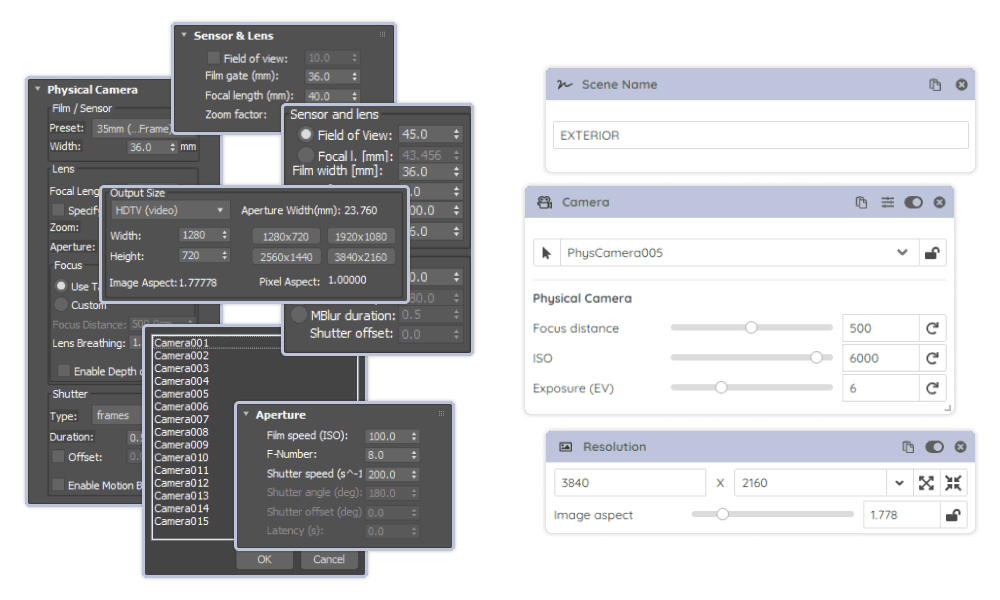
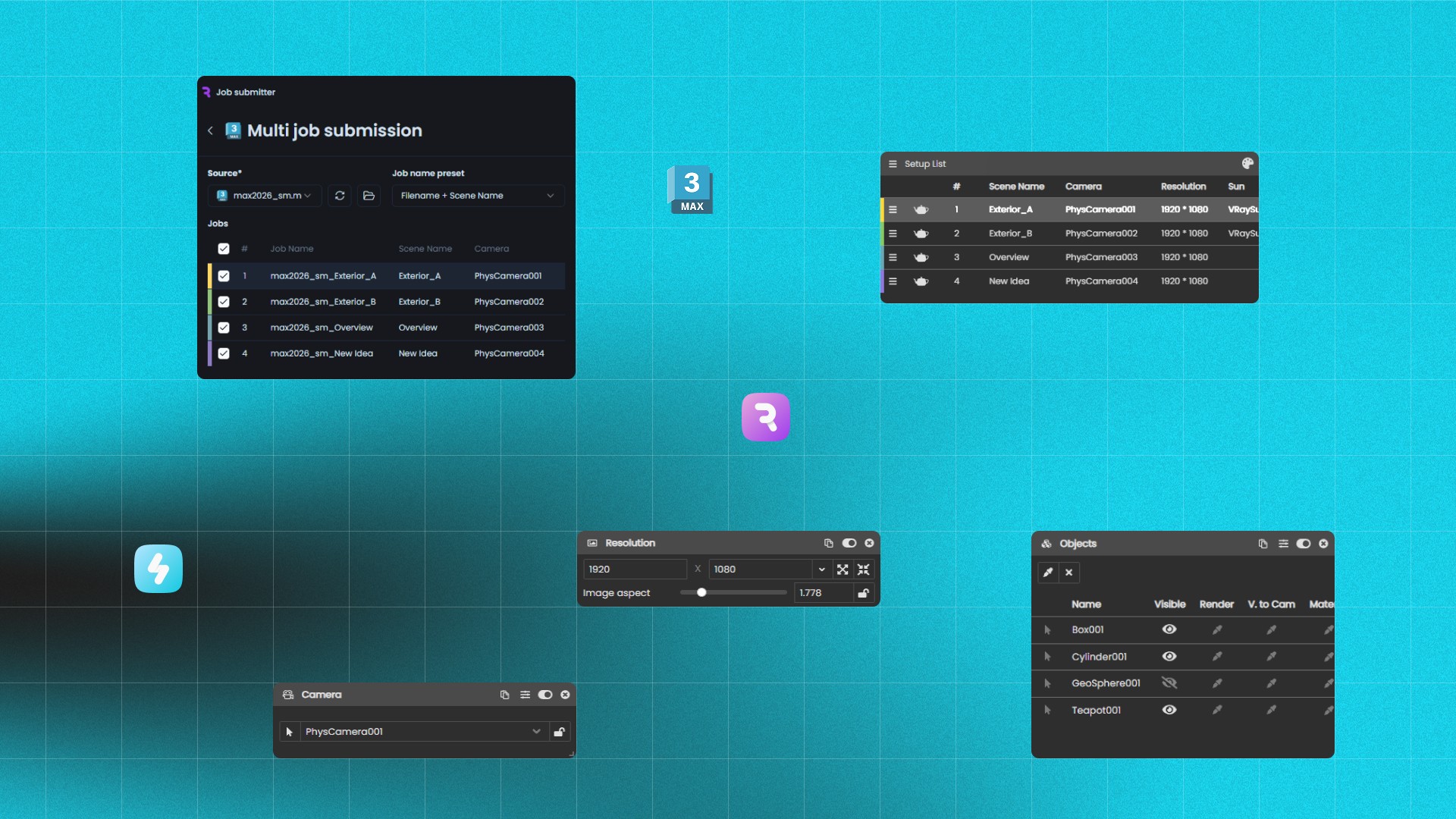
With Scene Manager’s camera and resolution modules, each setup stores the right camera, aspect ratio, and scene name together. Switching between angles is instant, with no manual adjustments needed.
2. Lighting
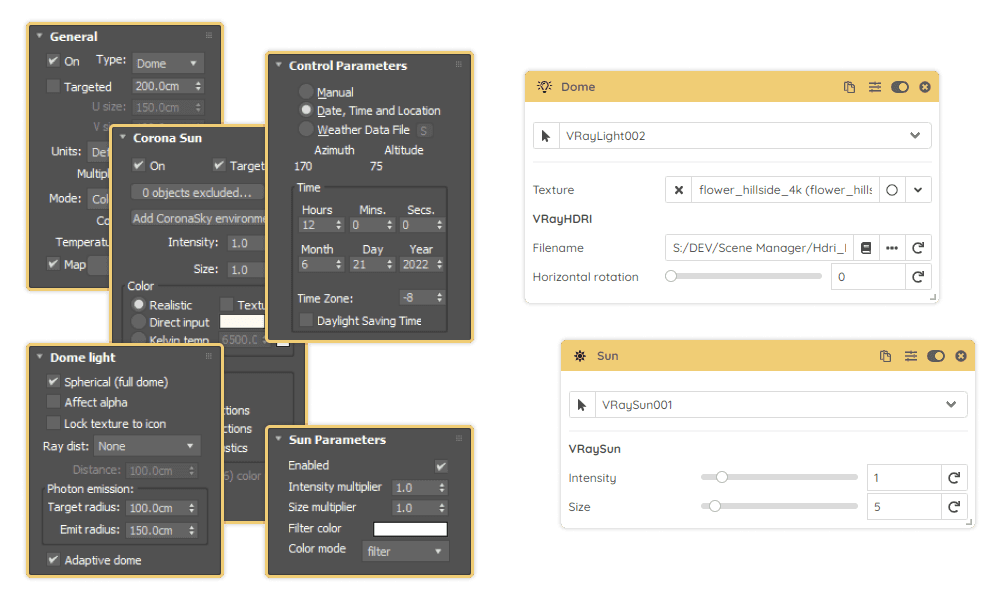
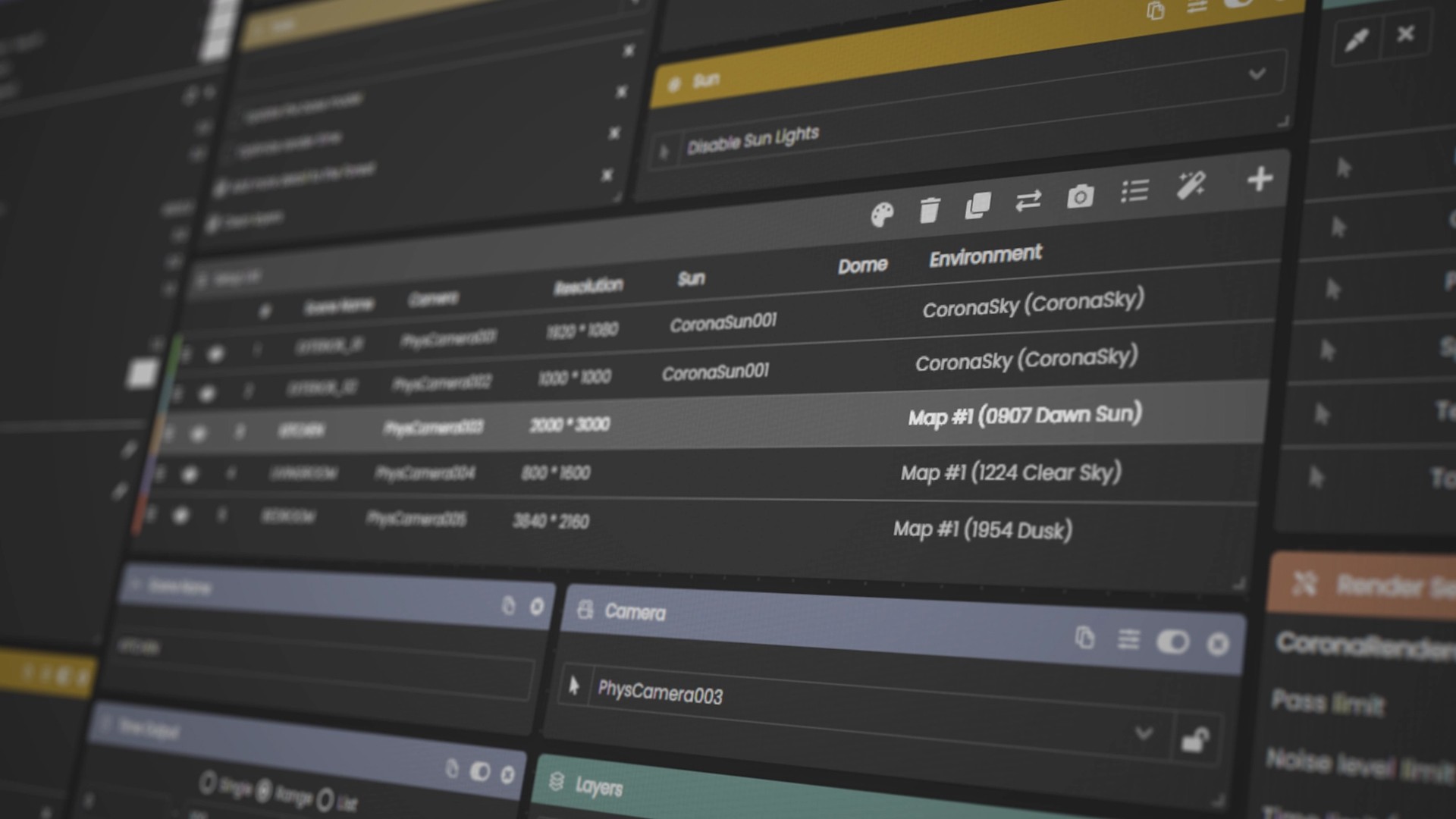
Every angle has its own lighting setup. Whether you’re working with sun lights, dome lights, or a daylight system, Scene Manager lets you define which lights belong to which setup. Switch angles, and the right lighting switches with you automatically.
3. Render Settings
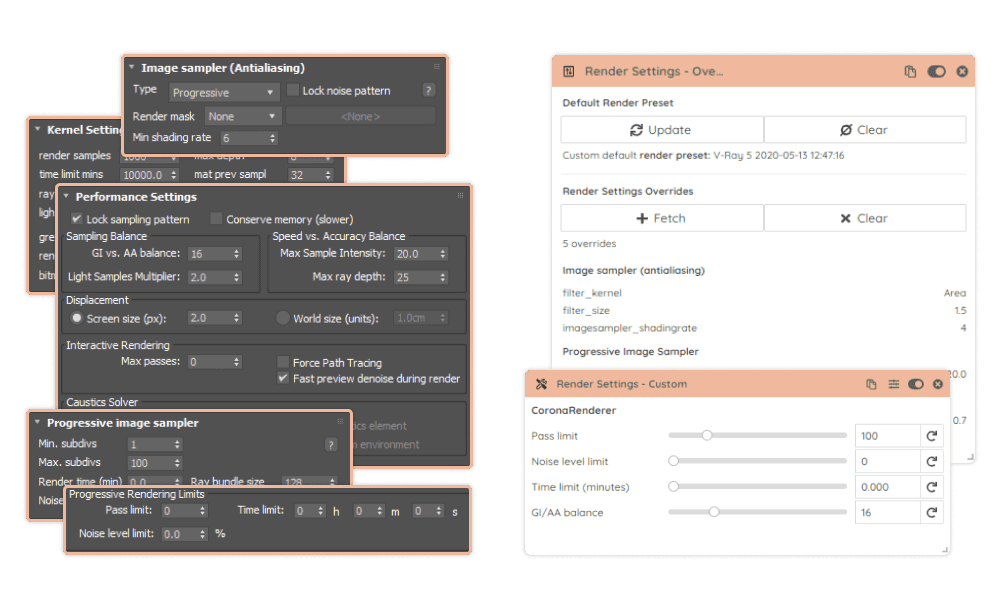
Scene Manager lets you keep preview and final render settings ready per setup, so you’re never digging through menus or second-guessing what’s active before a render.
4. Layers & Objects
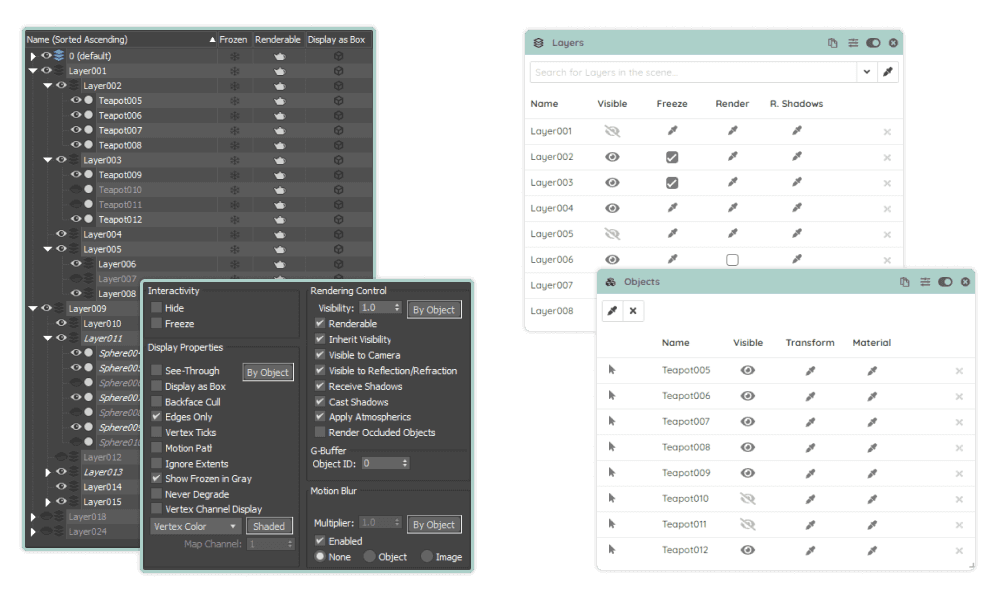
The layers and objects modules handle visibility, renderability, material overrides, and object position per setup. If an object needs to appear in one camera but not another, it’s a simple configuration, not a separate file. This level of scene management keeps setups clean and predictable.
5. HDRI & Environment
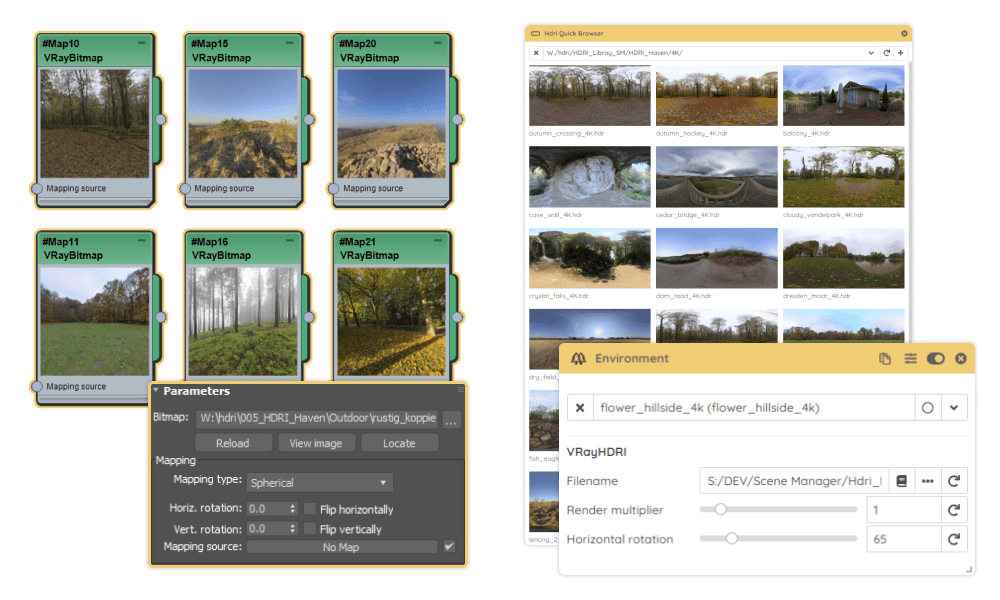
The HDRI library and environment modules let you quickly preview and assign the right map per setup. It keeps the creative process moving without the usual back-and-forth of managing environment options manually.
6. Post-Production / VFB
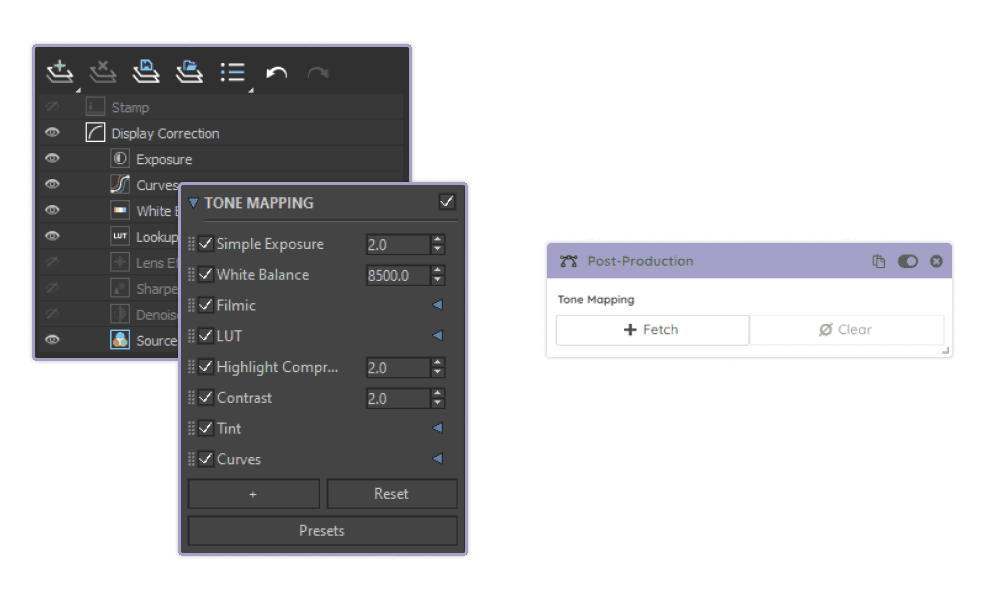
The post-production module stores all V-Ray VFB Layer and Corona Tone Mapping settings per camera. Brightness, contrast, LightMix, it’s all saved and ready to go whenever you need it.
7. Time Output
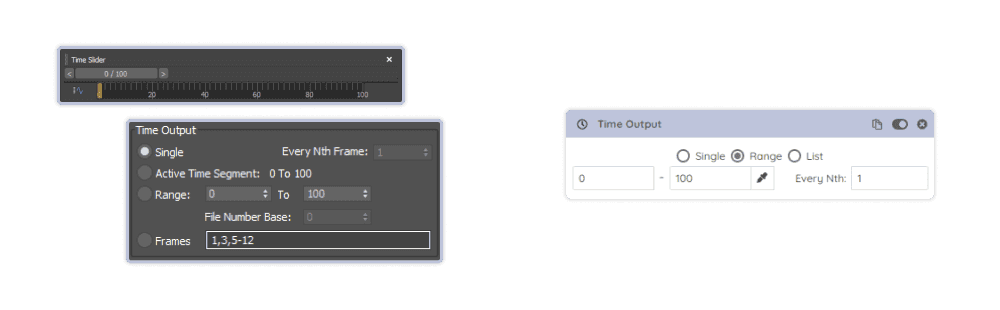
For animation work, the time output module lets you set a unique frame range per camera. It can also fetch the first and last key from a camera animation and adjust the timeline to match.
8. Batch Render
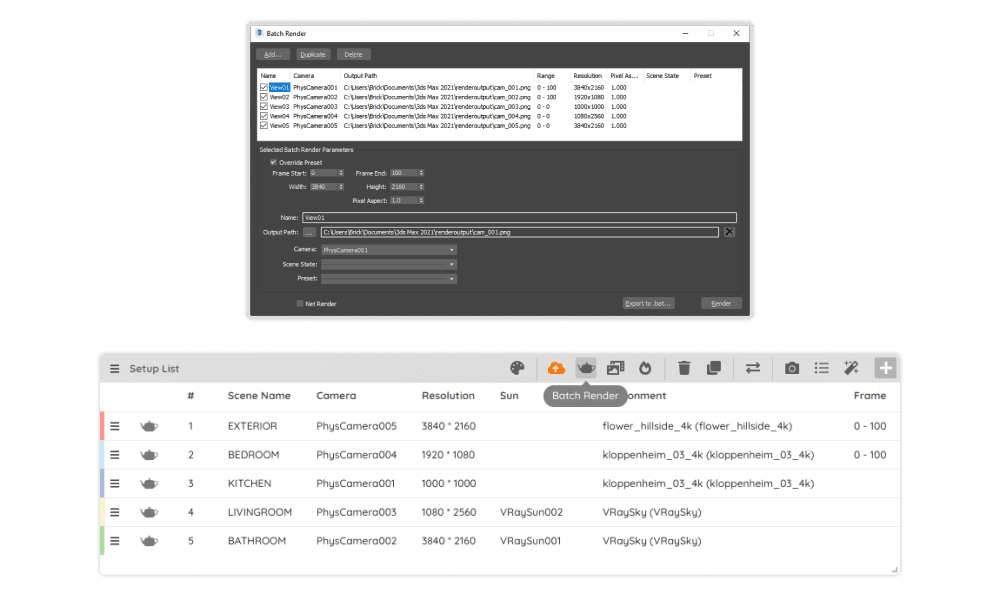
When everything is ready, Scene Manager lets you review all your setups and kick off a full batch render with one click. It’s easy to review your settings before you start, and there’s no need to adjust anything manually between renders, supporting render automation for consistent results.
Scene Manager keeps all the moving parts of a complex 3ds Max project in one place, so you spend less time on setup and more time on the actual work.
"/><stop offset="1" stop-color="rgb(249, 153, 88)"/></linearGradient><linearGradient id="tNByExjAT-3936178086-linear-gradient" x1="0.592694010721749" x2="0.40730598927825107" y1="0" y2="1"><stop offset="0" stop-color="rgb(214, 214, 214)"/><stop offset="1" stop-color="rgb(249, 249, 249)"/></linearGradient></defs><g d="M 140 280 C 201.35 280 235.45 280 257.72 257.72 C 280 235.44 280 201.34 280 140 C 280 78.66 280 44.55 257.72 22.28 C 235.45 0 201.35 0 140 0 C 78.65 0 44.55 0 22.28 22.28 C 0 44.55 0 78.65 0 140 C 0 201.35 0 235.45 22.28 257.72 C 44.56 280 78.66 280 140 280 Z M 93.549 162.53 C 81.249 162.21 71.609 151.79 71.609 139.49 L 71.609 70.54 C 71.609 58.24 81.249 47.82 93.549 47.5 C 106.269 47.17 116.689 57.39 116.689 70.03 L 116.689 139.99 C 116.689 152.64 106.279 162.85 93.549 162.52 Z M 127.189 47.5 L 94.649 47.5 C 82.349 47.5 71.929 57.14 71.609 69.44 C 71.279 82.16 81.499 92.58 94.139 92.58 L 126.429 92.58 C 152.469 92.58 174.229 113.26 174.599 139.3 C 174.979 165.77 153.559 187.42 127.179 187.42 L 117.179 187.42 C 104.879 187.42 94.459 197.06 94.139 209.36 C 93.809 222.08 104.029 232.5 116.669 232.5 L 126.119 232.5 C 177.179 232.5 219.399 191.57 219.669 140.5 C 219.939 89.27 178.339 47.5 127.169 47.5 Z" fill="transparent" height="280px" id="rSAPTrJ6C" width="280px"><g d="M 140 280 C 201.35 280 235.45 280 257.72 257.72 C 280 235.44 280 201.34 280 140 C 280 78.66 280 44.55 257.72 22.28 C 235.45 0 201.35 0 140 0 C 78.65 0 44.55 0 22.28 22.28 C 0 44.55 0 78.65 0 140 C 0 201.35 0 235.45 22.28 257.72 C 44.56 280 78.66 280 140 280 Z M 93.549 162.53 C 81.249 162.21 71.609 151.79 71.609 139.49 L 71.609 70.54 C 71.609 58.24 81.249 47.82 93.549 47.5 C 106.269 47.17 116.689 57.39 116.689 70.03 L 116.689 139.99 C 116.689 152.64 106.279 162.85 93.549 162.52 Z M 127.189 47.5 L 94.649 47.5 C 82.349 47.5 71.929 57.14 71.609 69.44 C 71.279 82.16 81.499 92.58 94.139 92.58 L 126.429 92.58 C 152.469 92.58 174.229 113.26 174.599 139.3 C 174.979 165.77 153.559 187.42 127.179 187.42 L 117.179 187.42 C 104.879 187.42 94.459 197.06 94.139 209.36 C 93.809 222.08 104.029 232.5 116.669 232.5 L 126.119 232.5 C 177.179 232.5 219.399 191.57 219.669 140.5 C 219.939 89.27 178.339 47.5 127.169 47.5 Z" fill="transparent" height="280px" id="XUITjQ3ui" width="280px"><path d="M 140 280 C 201.35 280 235.45 280 257.72 257.72 C 280 235.44 280 201.34 280 140 C 280 78.66 280 44.55 257.72 22.28 C 235.45 0 201.35 0 140 0 C 78.65 0 44.55 0 22.28 22.28 C 0 44.55 0 78.65 0 140 C 0 201.35 0 235.45 22.28 257.72 C 44.56 280 78.66 280 140 280 Z" fill="url(%23f1qYH2iq6-3936178086-linear-gradient)" height="280px" id="f1qYH2iq6" width="280px"/><path d="M 21.94 115.038 C 9.64 114.718 0 104.298 0 91.998 L 0 23.048 C 0 10.748 9.64 0.328 21.94 0.008 C 34.66 -0.322 45.08 9.898 45.08 22.538 L 45.08 92.498 C 45.08 105.148 34.67 115.358 21.94 115.028 Z" fill="url(%23tNByExjAT-3936178086-linear-gradient)" height="115.03777309249585px" id="tNByExjAT" transform="translate(71.609 47.492)" width="45.0796px"/><path d="M 55.587 0 L 23.048 0 C 10.748 0 0.328 9.64 0.008 21.94 C -0.322 34.66 9.898 45.08 22.538 45.08 L 54.827 45.08 C 80.867 45.08 102.627 65.76 102.997 91.8 C 103.377 118.27 81.957 139.92 55.577 139.92 L 45.577 139.92 C 33.277 139.92 22.858 149.56 22.538 161.86 C 22.208 174.58 32.427 185 45.067 185 L 54.517 185 C 105.577 185 147.797 144.07 148.067 93 C 148.337 41.77 106.737 0 55.567 0 Z" fill="rgb(249, 249, 249)" height="185px" id="kUQRNWucU" transform="translate(71.602 47.5)" width="148.0687800047492px"/></g></g></svg>)
"/><stop offset="1" stop-color="rgb(158, 60, 236)"/></linearGradient><linearGradient id="TwUw7mDUx-2775876027-linear-gradient" x1="0.21742248902519262" x2="0.7825775109748074" y1="0" y2="1"><stop offset="0" stop-color="rgb(227, 227, 227)"/><stop offset="1" stop-color="rgb(249, 249, 249)"/></linearGradient></defs><g d="M 140 280 C 201.347 280 235.448 280 257.724 257.724 C 280 235.448 280 201.347 280 140 C 280 78.653 280 44.552 257.724 22.276 C 235.448 0 201.347 0 140 0 C 78.653 0 44.552 0 22.276 22.276 C 0 44.552 0 78.653 0 140 C 0 201.347 0 235.448 22.276 257.724 C 44.552 280 78.653 280 140 280 Z M 187.406 230 C 179.585 230 171.985 225.961 167.793 218.743 L 137.031 165.737 C 130.788 154.979 134.498 141.223 145.315 135.015 C 156.132 128.806 169.964 132.495 176.207 143.252 L 206.969 196.259 C 213.212 207.016 209.502 220.772 198.685 226.981 C 195.127 229.02 191.236 230 187.406 230 Z M 204 113.5 C 204 78.876 176.174 50.652 141.748 50.03 C 141.367 50.01 140.977 50 140.586 50 L 92.537 50 C 80.087 50 70 60.1 70 72.567 C 70 85.035 80.087 95.135 92.537 95.135 L 140.586 95.135 C 150.703 95.135 158.926 103.37 158.926 113.5 C 158.926 123.63 150.703 131.865 140.586 131.865 L 121.074 131.865 C 108.623 131.865 98.537 141.965 98.537 154.432 C 98.537 166.9 108.623 177 121.074 177 L 140.586 177 C 140.977 177 141.367 177 141.748 176.97 C 176.174 176.348 204 148.124 204 113.5 Z" fill="transparent" height="280px" id="YKCNutVTT" width="280px"><path d="M 140 280 C 201.347 280 235.448 280 257.724 257.724 C 280 235.448 280 201.347 280 140 C 280 78.653 280 44.552 257.724 22.276 C 235.448 0 201.347 0 140 0 C 78.653 0 44.552 0 22.276 22.276 C 0 44.552 0 78.653 0 140 C 0 201.347 0 235.448 22.276 257.724 C 44.552 280 78.653 280 140 280 Z" fill="url(%23YDb5Nxcxy-2775876027-linear-gradient)" height="280px" id="YDb5Nxcxy" width="280px"/><path d="M 53.406 98 C 45.585 98 37.985 93.961 33.793 86.743 L 3.031 33.737 C -3.212 22.979 0.498 9.223 11.315 3.015 C 22.132 -3.194 35.964 0.495 42.207 11.252 L 72.969 64.259 C 79.212 75.016 75.502 88.772 64.685 94.981 C 61.127 97.02 57.236 98 53.406 98 Z" fill="url(%23TwUw7mDUx-2775876027-linear-gradient)" height="97.99995519103643px" id="TwUw7mDUx" transform="translate(134 132)" width="76.00044607111269px"/><path d="M 134 63.5 C 134 28.876 106.174 0.652 71.748 0.03 C 71.367 0.01 70.977 0 70.586 0 L 22.537 0 C 10.087 0 0 10.1 0 22.567 C 0 35.035 10.087 45.135 22.537 45.135 L 70.586 45.135 C 80.703 45.135 88.926 53.37 88.926 63.5 C 88.926 73.63 80.703 81.865 70.586 81.865 L 51.074 81.865 C 38.623 81.865 28.537 91.965 28.537 104.432 C 28.537 116.9 38.623 127 51.074 127 L 70.586 127 C 70.977 127 71.367 127 71.748 126.97 C 106.174 126.348 134 98.124 134 63.5 Z" fill="rgb(249, 249, 249)" height="127px" id="dR8GQomDb" transform="translate(70 50)" width="134px"/></g></svg>)
"/><stop offset="1" stop-color="rgb(20, 201, 225)"/></linearGradient><linearGradient id="ttiWHiLhI-610479465-linear-gradient" x1="0" x2="1" y1="0.10969428681921467" y2="0.8903057131807853"><stop offset="0" stop-color="rgb(249, 249, 249)"/><stop offset="1" stop-color="rgb(227, 227, 227)"/></linearGradient></defs><g d="M 139.395 278.79 C 200.478 278.79 234.431 278.79 256.611 256.61 C 278.791 234.43 278.79 200.477 278.79 139.395 C 278.79 78.313 278.791 44.36 256.611 22.18 C 234.431 0 200.478 0 139.395 0 C 78.313 0 44.36 0 22.18 22.18 C 0 44.36 0 78.313 0 139.395 C 0 200.477 0 234.43 22.18 256.61 C 44.36 278.79 78.313 278.79 139.395 278.79 Z M 178.295 161.885 L 100.415 161.885 C 87.984 161.885 77.914 151.815 77.914 139.385 C 77.914 126.955 87.984 116.885 100.415 116.885 L 178.295 116.885 C 190.725 116.885 200.795 126.955 200.795 139.385 C 200.795 151.815 190.725 161.885 178.295 161.885 Z M 100.396 161.905 C 96.575 161.905 92.705 160.935 89.165 158.885 C 78.405 152.675 74.715 138.915 80.925 128.145 L 119.866 60.695 C 126.076 49.935 139.836 46.245 150.606 52.455 C 161.366 58.665 165.056 72.425 158.846 83.195 L 119.906 150.645 C 115.736 157.865 108.176 161.895 100.396 161.895 Z M 139.335 229.365 C 135.515 229.365 131.645 228.395 128.105 226.345 C 117.345 220.135 113.655 206.375 119.865 195.605 L 158.805 128.155 C 165.015 117.395 178.775 113.705 189.545 119.915 C 200.305 126.125 203.995 139.885 197.785 150.655 L 158.845 218.105 C 154.675 225.325 147.115 229.355 139.335 229.355 Z" fill="transparent" height="278.79002000808714px" id="hKg4pe_V0" transform="translate(0.605 0.605)" width="278.78953101158965px"><g d="M 139.395 278.79 C 200.478 278.79 234.431 278.79 256.611 256.61 C 278.791 234.43 278.79 200.477 278.79 139.395 C 278.79 78.313 278.791 44.36 256.611 22.18 C 234.431 0 200.478 0 139.395 0 C 78.313 0 44.36 0 22.18 22.18 C 0 44.36 0 78.313 0 139.395 C 0 200.477 0 234.43 22.18 256.61 C 44.36 278.79 78.313 278.79 139.395 278.79 Z M 178.295 161.885 L 100.415 161.885 C 87.984 161.885 77.914 151.815 77.914 139.385 C 77.914 126.955 87.984 116.885 100.415 116.885 L 178.295 116.885 C 190.725 116.885 200.795 126.955 200.795 139.385 C 200.795 151.815 190.725 161.885 178.295 161.885 Z M 100.396 161.905 C 96.575 161.905 92.705 160.935 89.165 158.885 C 78.405 152.675 74.715 138.915 80.925 128.145 L 119.866 60.695 C 126.076 49.935 139.836 46.245 150.606 52.455 C 161.366 58.665 165.056 72.425 158.846 83.195 L 119.906 150.645 C 115.736 157.865 108.176 161.895 100.396 161.895 Z M 139.335 229.365 C 135.515 229.365 131.645 228.395 128.105 226.345 C 117.345 220.135 113.655 206.375 119.865 195.605 L 158.805 128.155 C 165.015 117.395 178.775 113.705 189.545 119.915 C 200.305 126.125 203.995 139.885 197.785 150.655 L 158.845 218.105 C 154.675 225.325 147.115 229.355 139.335 229.355 Z" fill="transparent" height="278.79001999999997px" id="w_SP9V_LT" transform="translate(0 0)" width="278.7895310000081px"><path d="M 139.395 278.79 C 200.478 278.79 234.431 278.79 256.611 256.61 C 278.791 234.43 278.79 200.477 278.79 139.395 C 278.79 78.313 278.791 44.36 256.611 22.18 C 234.431 0 200.478 0 139.395 0 C 78.313 0 44.36 0 22.18 22.18 C 0 44.36 0 78.313 0 139.395 C 0 200.477 0 234.43 22.18 256.61 C 44.36 278.79 78.313 278.79 139.395 278.79 Z" fill="url(%23VvyLWBwlb-610479465-linear-gradient)" height="278.79001999999997px" id="VvyLWBwlb" width="278.7895310000081px"/><path d="M 100.381 45 L 22.501 45 C 10.07 45 0 34.93 0 22.5 C 0 10.07 10.07 0 22.501 0 L 100.381 0 C 112.811 0 122.881 10.07 122.881 22.5 C 122.881 34.93 112.811 45 100.381 45 Z" fill="url(%23ttiWHiLhI-610479465-linear-gradient)" height="45px" id="ttiWHiLhI" transform="translate(77.914 116.885)" width="122.88050000000001px"/><path d="M 22.485 112.465 C 18.665 112.465 14.795 111.495 11.255 109.445 C 0.495 103.235 -3.195 89.475 3.015 78.705 L 41.955 11.255 C 48.165 0.495 61.925 -3.195 72.695 3.015 C 83.455 9.225 87.145 22.985 80.935 33.755 L 41.995 101.205 C 37.825 108.425 30.265 112.455 22.485 112.455 Z" fill="rgb(249, 249, 249)" height="112.46529262442554px" id="B5LOvula1" transform="translate(77.91 49.44)" width="83.95068524885113px"/><path d="M 22.485 112.465 C 18.665 112.465 14.795 111.495 11.255 109.445 C 0.495 103.235 -3.195 89.475 3.015 78.705 L 41.955 11.255 C 48.165 0.495 61.925 -3.195 72.695 3.015 C 83.455 9.225 87.145 22.985 80.935 33.755 L 41.995 101.205 C 37.825 108.425 30.265 112.455 22.485 112.455 Z" fill="rgb(249, 249, 249)" height="112.46529262442556px" id="tMeCyqf_z" transform="translate(116.849 116.9)" width="83.95058524885116px"/></g></g></svg>)